 Conditioning Control Panel
System Requirements
Windows 10 or 11
64-bit only. No Mac or Linux build
Nothing Else to Install
The installer brings everything it needs
WebView2
Already on almost every PC
8 GB RAM, 3 GB Disk
4 GB RAM is the floor. Content packs add several GB each and can live on an external drive
You do not need to install .NET
Older guides told you to fetch the .NET Desktop Runtime first. That is no longer true. The app ships with its own copy of everything it runs on, which is why the download is large. The installer also quietly adds Microsoft's WebView2 runtime and Visual C++ runtime if your PC happens to be missing them. WebView2 is already on every Windows 11 machine and on any Windows 10 machine with a current Edge.
Installation
Download and install
- Download the installer (
ConditioningControlPanel-7.1.5-Setup.exe), or browse the releases page - Run it and follow the prompts. It installs for your user account, so it does not need administrator rights unless you tell it to install for everyone
- Pick your shortcuts on the way through. A Start Menu entry is on by default; the desktop icon and the "Open with CCP" right-click option are not
It is a big download
The installer is roughly 740 MB. Most of that is the bundled runtime and the audio and art that ship with the app, so there is nothing to fetch afterwards. Give it time on a slow connection. The installer is the only download there is - there is no portable version.
About your antivirus
The app and the installer are both code-signed, and the whole project is open source, so you can read exactly what it does. Some antivirus tools still flag it, because an app that draws images over the top of everything else looks a lot like something that should not be doing that. It is a false positive. If you want to check for yourself, the source is on GitHub.
First Launch
The first time you open it, the app quietly sets itself up:
- It makes your content folders. Empty folders for your images, videos, wallpapers and spirals, all under your user data folder
- It loads sensible defaults. Everything starts gentle. Nothing intense is switched on for you
- You start at Level 1 with 0 XP. Most of the heavier features are locked until you level up
- Your companion avatar appears in a tube attached to the side of the window. You can drag her off on her own later if you want
Photosensitivity
Several features work by flashing. flash_images.txt throws images onto your screen at a rate you set, subliminals.txt flashes text for a fraction of a second at a time, and the spiral overlay turns continuously. Flashing and high-contrast moving imagery can trigger symptoms in people with photosensitive epilepsy or related conditions. If that applies to you, or you do not know whether it does, read the notices on those two pages before you turn anything up. Every feature has its own off switch and its own rate and opacity, and the panic key stops all of it at once.
Where your data lives
Everything the app saves about you sits in %LOCALAPPDATA%\ConditioningControlPanel\ - your settings, your progress, your content folders, and the browser's cache. Paste that path into File Explorer to go straight there.
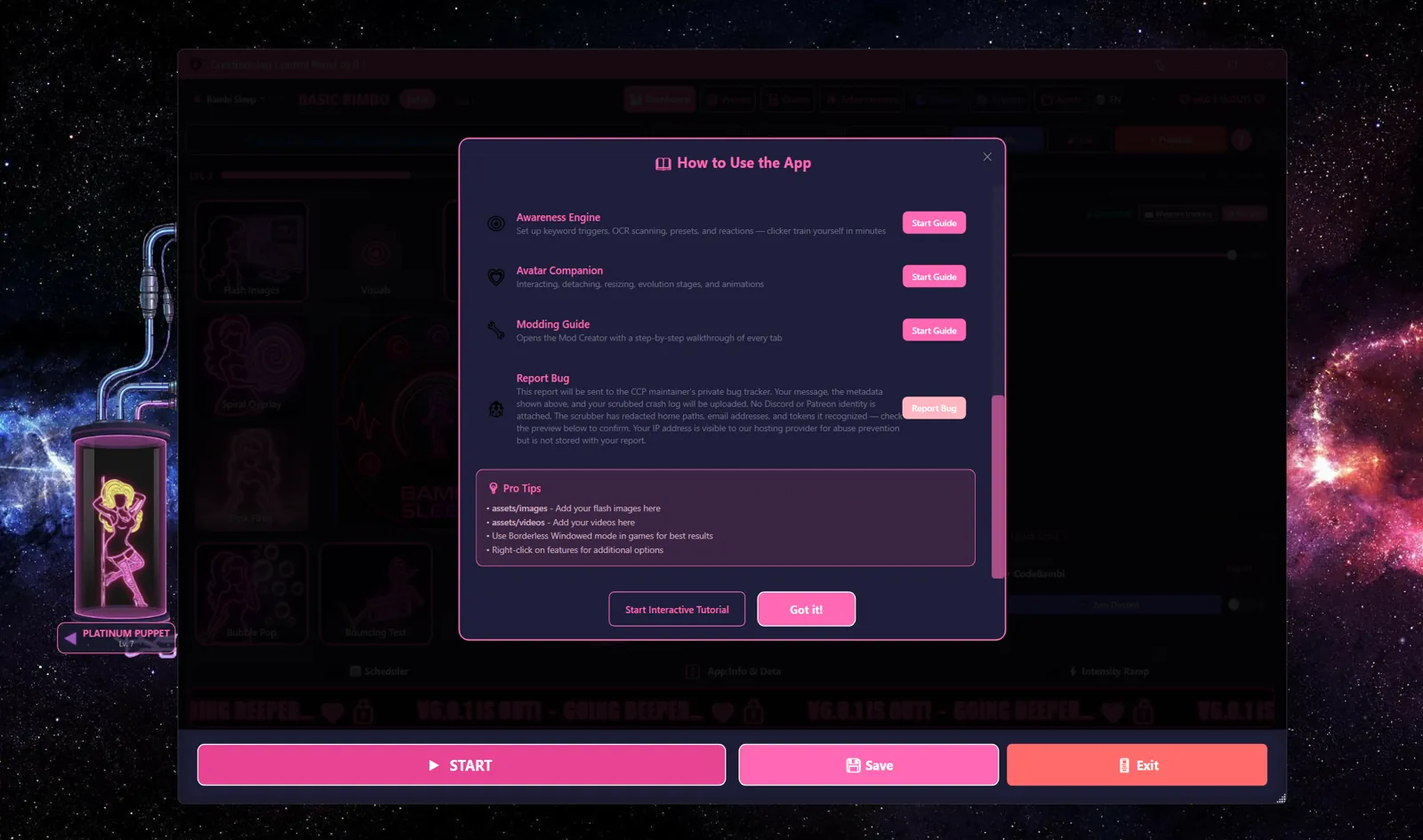
The "?" button is your friend
Top right of the app, next to the tabs. It opens How to Use the App, which has short guides for the bigger features and a Start Interactive Tutorial button that walks you around the real interface.
Adding Your Content
The app comes with plenty of built-in audio and art, but the point is your own material. Drop your files into these folders and the app picks them up:
%LOCALAPPDATA%\ConditioningControlPanel\
├── assets\
│   ├── images\       your flash images
│   ├── videos\       your mandatory videos
│   └── wallpapers\   images used as wallpaper
└── Spirals\          spiral overlay GIFs and clips
What it can read
| Type | Formats | Notes |
|---|---|---|
| Images | .png, .jpg, .jpeg, .gif, .webp, .bmp, .tif, .tiff, .heic, .avif, .ico | Animated GIFs and animated WebP play by themselves |
| Videos | .mp4, .webm, .mkv, .mov, .avi, .wmv | MP4 is the safest bet |
| Spirals | .gif, .png, .jpg, .webp, .bmp, plus .mp4, .webm, .mov, .avi, .mkv | An animated GIF is the classic choice |
The sounds that play alongside flashes ship with the app. You do not need to supply any.
Keep GIFs small
Under about 5 MB each. A folder full of huge animated GIFs will make the whole app stutter.
Getting to the folders quickly
You do not have to remember the path. Open the Assets tab and click Open Folder, and Windows Explorer opens right where your files go. The Assets tab also lets you preview what you have added and untick anything you do not want in the rotation.
Interface Overview
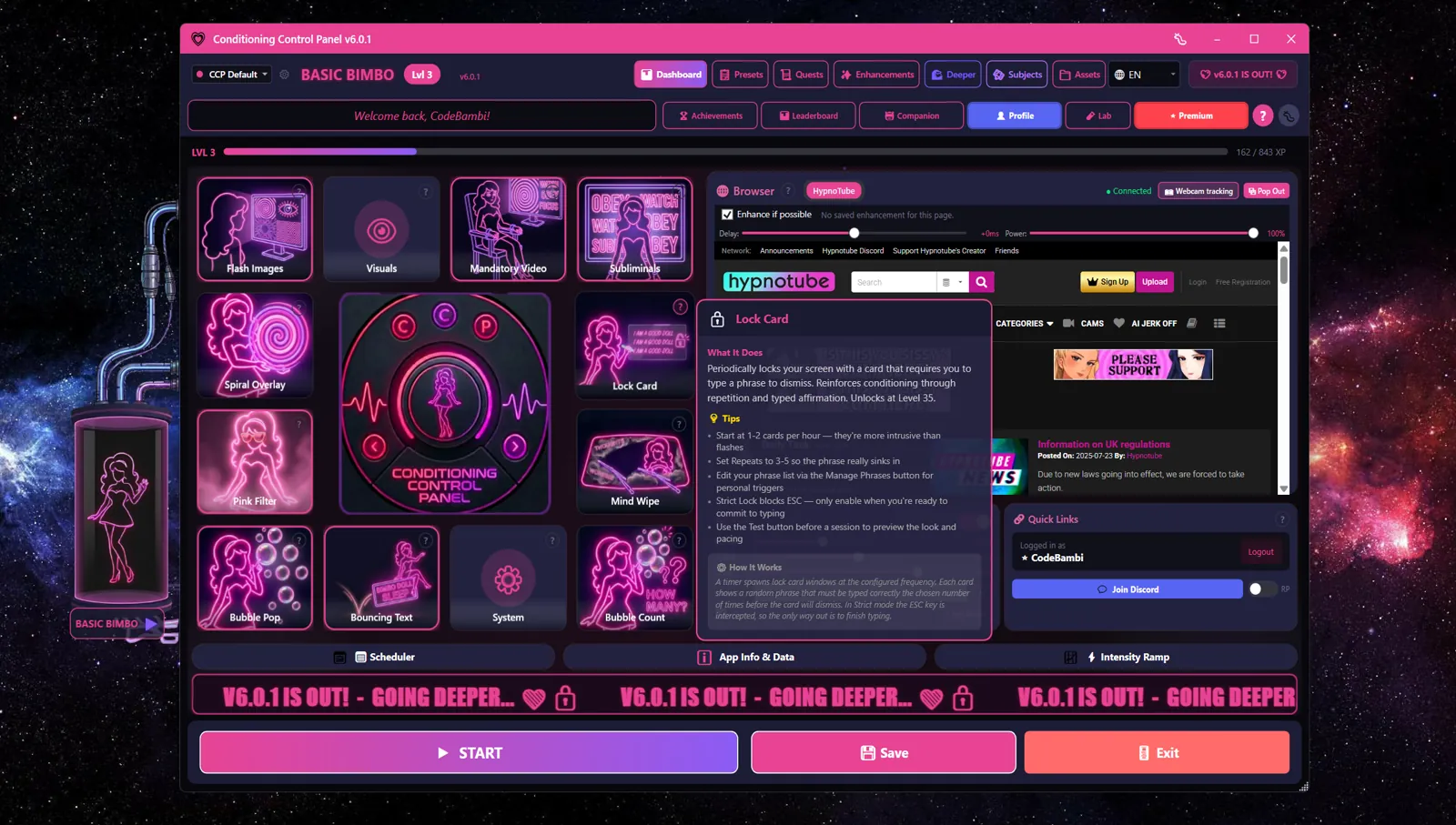
Almost everything happens on one screen. Roughly, it goes:
+--------------------------------------------------------+
|  tab row 1        tab row 2                        [?] |
+--------------------------------------------------------+
|  LVL 3   ###############-------------    162 / 843 XP  |
+---------------------------+----------------------------+
|  FEATURE CARDS            |  BROWSER                   |
|    Flash Images           |    a real browser, in      |
|    Visuals                |    the app                 |
|    Mandatory Video        |                            |
|    Subliminals            |  AUDIO                     |
|    System                 |    volume and ducking      |
|    Deeper                 |                            |
|    (more unlock as you    |  QUICK LINKS               |
|     level up)             |    who you are logged in   |
|                           |    as, Discord, logout     |
+---------------------------+----------------------------+
|  Scheduler  |  App Info & Data  |  Intensity Ramp      |
+--------------------------------------------------------+
|      START       |      Save       |      Exit         |
+--------------------------------------------------------+
Each feature card has a ? in its corner that explains what the feature does and how to set it up. Right-click a card for extra options.
The tabs
| Tab | What is in it |
|---|---|
| Dashboard | The main screen above. This is where you land |
| Presets | Saved combinations of settings, and sessions |
| Quests | Daily and weekly objectives |
| Programs | Multi-day training arcs. Still in beta |
| Enhancements | The skill tree you spend points in |
| Deeper | Longer guided pieces built by the community |
| Subjects | People who have opted in to being found for remote control |
| Assets | Browse the content you have added, and install content packs |
| Achievements | What you have unlocked, and what is still hiding |
| Leaderboard | Where you sit against everyone else, if you opt in |
| Companion | Your avatar's look, personality and behaviour |
| Profile | Your account and how you sign in |
| Lab | Experimental features. Expect rough edges |
| Premium | Supporter-only features |
Basic Workflow
Your first run
- Add your content. Images and videos into the folders above
- Set the dials. Open the Flash Images card and set how often you want things to happen
- Press START. The engine begins
- Interact. Click images, answer attention checks, earn XP
- Stop whenever you want. Press the panic key, which is Escape unless you change it
The panic key
Your emergency stop
Press once to stop the engine and silence everything.
Press again within 2 seconds to close the app completely.
It works even when the app is not the window you are looking at. If a mandatory video is playing, the first press pauses the video instead, so it takes one extra tap to get all the way out. Read system_settings.cfg before you change it, and especially before you turn it off.
Recommended first steps
- Leave the frequency low. Flash Images starts at 10 per hour, which is about one every six minutes. The slider goes up to 180 per hour. There is no rush to move it
- Leave Click switched on in the Flash Images card, so you can dismiss an image by clicking it. Turn it off and images become click-through
- Leave the panic key alone. Do not switch on "No Panic" until you know the app well and have decided you want that
- Try a session. "Morning Drift" on the Presets tab is 30 minutes and gentle, and it sets everything up for you
- Say hello to your companion. She is the one in the tube. The Companion tab is where she gets interesting
Go at your own pace
Nothing here needs to be turned up. The heavier features unlock with levels precisely so that you meet them gradually, and every one of them can be switched off again. If something is not landing well, stop, change it, or close the app. That is always a valid move.