 Conditioning Control Panel
System Settings
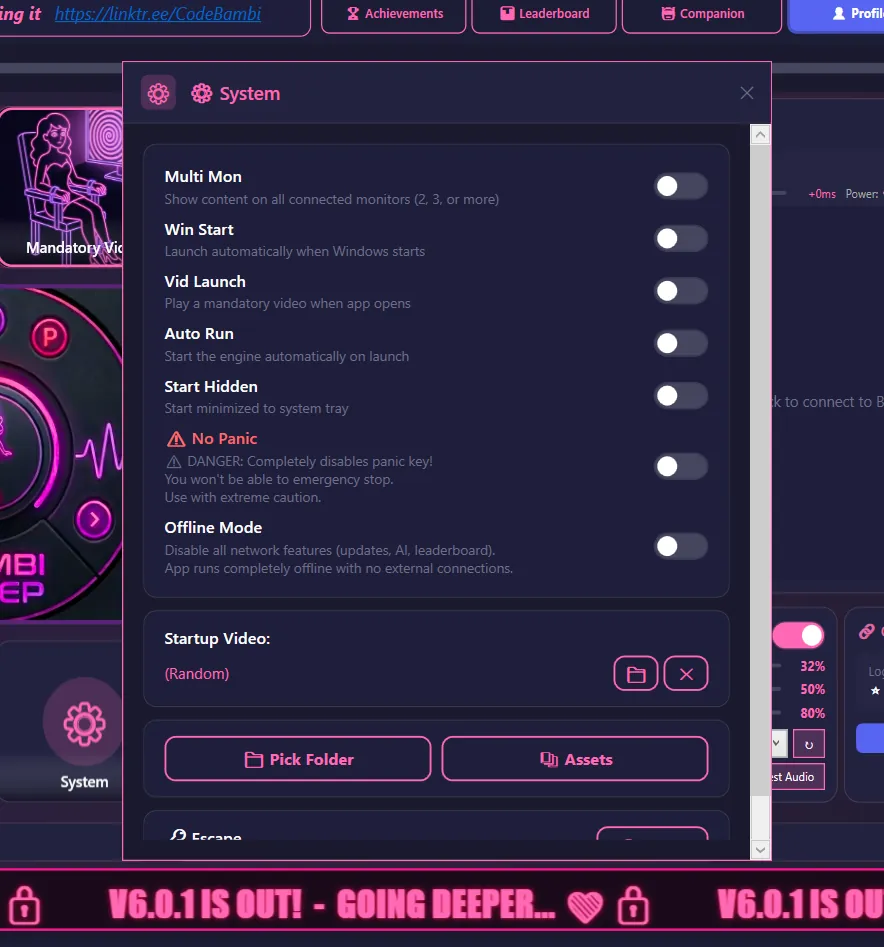
Open the System card on the Dashboard. Everything here is a switch, and every switch explains itself in the window.
Screens and video
| Setting | What it does |
|---|---|
| Multi Mon | Use all your connected monitors, not just the main one. Off means everything stays on the primary screen |
| Fill all monitors with video | Only matters with three or more screens. Gives every screen its own video, which costs a lot of performance. Off by default on big setups; one and two monitor setups always fill |
| Force video GPU decode | Plays videos on the graphics card instead of the processor. Off by default, because it causes a white-screen bug on some PCs. Turn it on if video only appears on one screen, keeps hopping screens, or freezes when it starts |
| Blurred video background | Fills the empty bars around a video that does not match your screen shape with a blurred copy of itself, the way phone apps do. Turn it off if you would rather have plain black bars |
| Browser video engine (beta) | Plays videos through the built-in browser instead of the older player. More stable. Anything the browser cannot handle falls back to the old player automatically |
Startup and safety
| Setting | What it does |
|---|---|
| Win Start | Opens the app automatically when Windows starts |
| Vid Launch | Plays a mandatory video the moment the app opens. Pick which one, or leave it random, in the Startup Video box just below |
| Auto Run | Starts the engine on launch, without you pressing START |
| Start Hidden | Opens minimised to the system tray |
| No Panic | Turns the panic key off entirely. See the warning below before you touch this |
| Offline Mode | Switches off every network feature: updates, AI, leaderboard, cloud sync, downloads. The app runs with no outside connections at all |
Two things about Offline Mode
Before it will switch on, the app asks you for an offline name to use in place of your account. And it covers the app's own connections, not the built-in browser: if you browse the web in the browser pane, that is still you on the internet.
Your leaderboard name is not set here. It comes from your account, and you change it from the Profile side of the app.
The two buttons at the bottom
Pick Folder lets you point the app at a different folder for your content, if you would rather not keep it in the default place. Assets opens the assets folder in Windows Explorer.
Panic Key
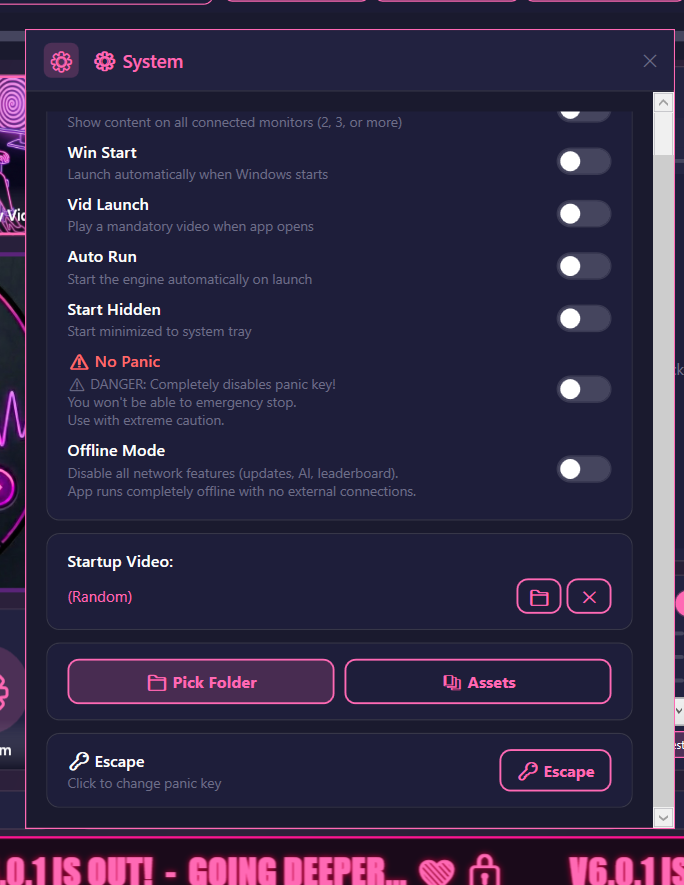
The panic key is your emergency stop. It is Escape until you change it, and it works even when the app is not the window you are looking at.
| Action | Result |
|---|---|
| Press once | Stops the engine and silences everything |
| Press again within 2 seconds | Closes the app |
The second press only closes the app if the engine is already stopped, so in practice it is stop, then exit. Wait longer than two seconds between presses and the count resets, and you just get the stop.
Sometimes it takes one extra tap
A few things on screen catch the first press for themselves rather than passing it along: a mandatory video (the press pauses it), an open lock card, the settings palette, and a couple of the full-screen web experiences. If the first press did not do what you expected, press again. Nothing is swallowing it permanently.
Changing it
- Scroll to the bottom of the System window and click the key button, which shows whatever your panic key currently is
- Press the key you want. The button confirms with a tick
- That is it. The new key is saved straight away
No Panic turns off your emergency stop
With it on, the panic key does nothing at all. The only ways out are the Exit button and Task Manager (Ctrl+Shift+Esc). The app's own warning adds that combining this with Strict Lock is "VERY restrictive", and it makes you confirm twice before it will switch on. Do not use it until you have used the app enough to know exactly what you are agreeing to, and never leave it on going into something you might need to leave.
Audio Settings
These live on the Audio card on the Dashboard.
| Setting | Default | What it does |
|---|---|---|
| Master | 32% | Overall volume for everything the app plays |
| Video | 50% | Volume for mandatory videos specifically |
| Duck (switch) | On | Turns other apps down while a video is playing |
| Duck (slider) | 80% | How far down. At 80%, other apps drop to a fifth of their volume |
| Don't duck browser | On | Leaves the app's own browser at full volume when ducking kicks in |
| Output | System default | Which speakers or headphones the app uses |
How ducking works
- A video starts
- Windows turns every other app down by the Duck amount
- The video plays at its own volume
- When the video finishes, everything else goes back to where it was
Your volumes are not at risk
Ducking writes down what your other apps were set to before it touches anything, and puts them back afterwards. If the app is killed mid-video, the next launch reads that record and restores them. There is also a watchdog that undoes any ducking left hanging for more than five minutes.
Embedded Browser
There is a real browser inside the app, on the right of the Dashboard. It is Microsoft's WebView2, which is the same engine as Edge, so sites behave normally. It exists so the app can watch what you are doing and react to it without you having to leave.
Getting around
| Control | Action |
|---|---|
| URL bar | Type an address, or a search |
| Back / Forward | The usual |
| Home | Back to the start page |
| Refresh | Reload the page |
Zoom
The pane is narrow, so pages open zoomed out to 50% to fit more in. Ctrl+scroll changes it, same as any browser.
Browser data
Cookies, cache and history go in a browser_data folder under your user data folder. Delete that folder while the app is closed to wipe everything the browser remembers, including any sites you are signed in to. Some features keep their own separate browser profiles alongside it, so you will see several folders with similar names.
Multi-Monitor Setup
Turn on Multi Mon in System settings and the app spreads itself across every screen you have. What that means depends on the feature:
- Flash images pick a screen at random each time, so they move around rather than appearing everywhere at once
- Videos fill every screen if you have one or two monitors. With three or more, they stay on the main screen unless you also switch on "Fill all monitors with video"
- Overlays like the spiral and the pink filter cover all screens. Each of those can also be pinned to one specific screen in its own settings
- Your companion avatar, once you drag her out of the main window, can sit on any screen you like. The app remembers where you left her
Gaming setup
Keep the game on one screen and the avatar and overlays on another. Run the game in borderless windowed mode, otherwise a true fullscreen game will sit on top of everything the app tries to draw.
Presets
A preset is a saved bundle of feature settings, so you can jump between moods without rebuilding everything by hand. They live on the Presets tab as a row of cards, five of which come with the app.
Using them
- Set everything up the way you want it
- Click the New Preset card at the end of the row and give it a name
- To use one later, click its card and then Load Preset
- Save writes your current settings over the selected preset. Delete removes it, and Export Preset saves it to a file you can share
The five presets that ship with the app cannot be deleted, but you can load one, adjust it, and save the result as your own.
Some ideas
Morning Light
Low intensity, occasional flashes, nothing that needs your attention
Gaming Mode
Background only, nothing that steals focus or covers the screen
Intense Session
High frequency, everything you have unlocked switched on
What a preset actually stores
The settings for the conditioning features: flash images, video, attention checks, subliminals, audio, and the unlockable features you have earned, plus your monitor and panic key choices. It does not store your XP, your level, or anything else about your progress, so loading a preset can never cost you progression.
Files & Data
Your files
Everything personal lives under %LOCALAPPDATA%\ConditioningControlPanel\. Paste that into File Explorer to get there.
| File or folder | What it is |
|---|---|
settings.json |
All your preferences and your XP and level |
settings.bak-1.json to bak-3.json |
Automatic daily backups of the above, up to three days back |
assets\ |
Your images, videos and wallpapers |
Spirals\ |
Your spiral overlay files |
logs\ |
Diagnostic logs. Useful when reporting a bug |
browser_data\ |
The built-in browser's cache and cookies |
Sessions you build are the exception - those go to %APPDATA%\ConditioningControlPanel\CustomSessions\, in Roaming rather than Local.
Files that came with the app
The bundled audio and art sit in a Resources folder inside the install directory, not with your data. That includes Resources\sub_audio\ (the subliminal whispers) and Resources\sounds\ (several thousand bundled sound files: bubbles, companion voice lines, flash sounds and more). Leave these alone unless you are modding - see advanced_faq.txt.
Starting over
- Close the app
- Delete
settings.json - Delete the
browser_datafolder to clear the browser as well - Start the app again
This resets your progress too
Your XP, your level and your unlocks are all stored in settings.json. Deleting it puts you back at Level 1 with 0 XP and everything relocked. If you only want to fix a bad setting, change that setting instead. If you do it by accident, one of the settings.bak-*.json files next to it is probably yesterday's copy - close the app, rename it over settings.json, and reopen.