 Conditioning Control Panel
Overview
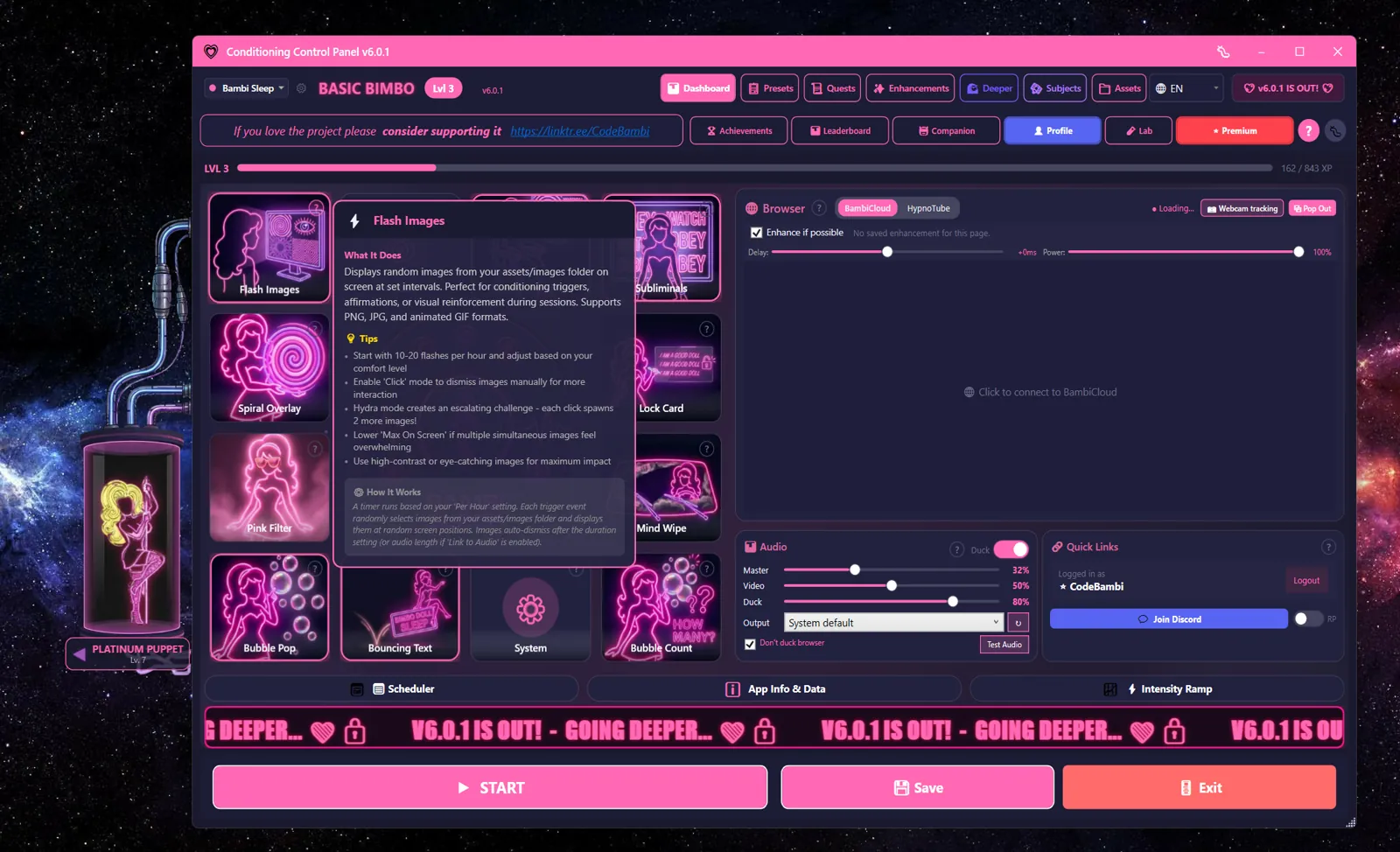
This is the app's signature feature and the one most people turn on first. You drop pictures into a folder. Every few minutes the app throws a handful of them onto your screen at random spots, on top of whatever you're doing. They fade out on a timer, or you click them away.
Nothing is bundled and nothing is downloaded for you. It only ever shows files you put there yourself, or images from a content pack you chose to install.
Photosensitivity notice
Turned up, this feature puts a flash event on screen up to 180 times an hour, up to 20 images at a time, at full opacity with the fade set to an instant cut, on every monitor you have connected. Animated GIFs and animated WebP play their own animation on top of that.
Flashing and high-contrast moving imagery can trigger symptoms in people with photosensitive epilepsy or related conditions. If that applies to you, or you do not know whether it does, be careful with this one. The controls that reduce it: Enable switches the whole feature off, Per Hour and Images decide how much arrives, a higher Fade eases images in and out instead of cutting, Opacity takes them down from solid, and Multi Mon off in System settings keeps everything on one screen. The panic key, Escape unless you change it, clears every flash and stops the scheduler from any window.
Random Popups
Random image, random spot, random monitor
GIF Support
Animated GIF and WebP both play
Clickable
Click to dismiss, or make them click-through
Hydra
Clicking one spawns two more
This one gets intense fast
At the top of the sliders this feature puts images on your screen every few seconds, several at a time, over every window you have open. Turn Hydra on and clicking makes it worse rather than better. Start near the defaults, and know your panic key before you start: pressing it (default Escape) clears every flash on screen instantly and stops the scheduler. It works from any window, whatever has focus.
Flash Settings
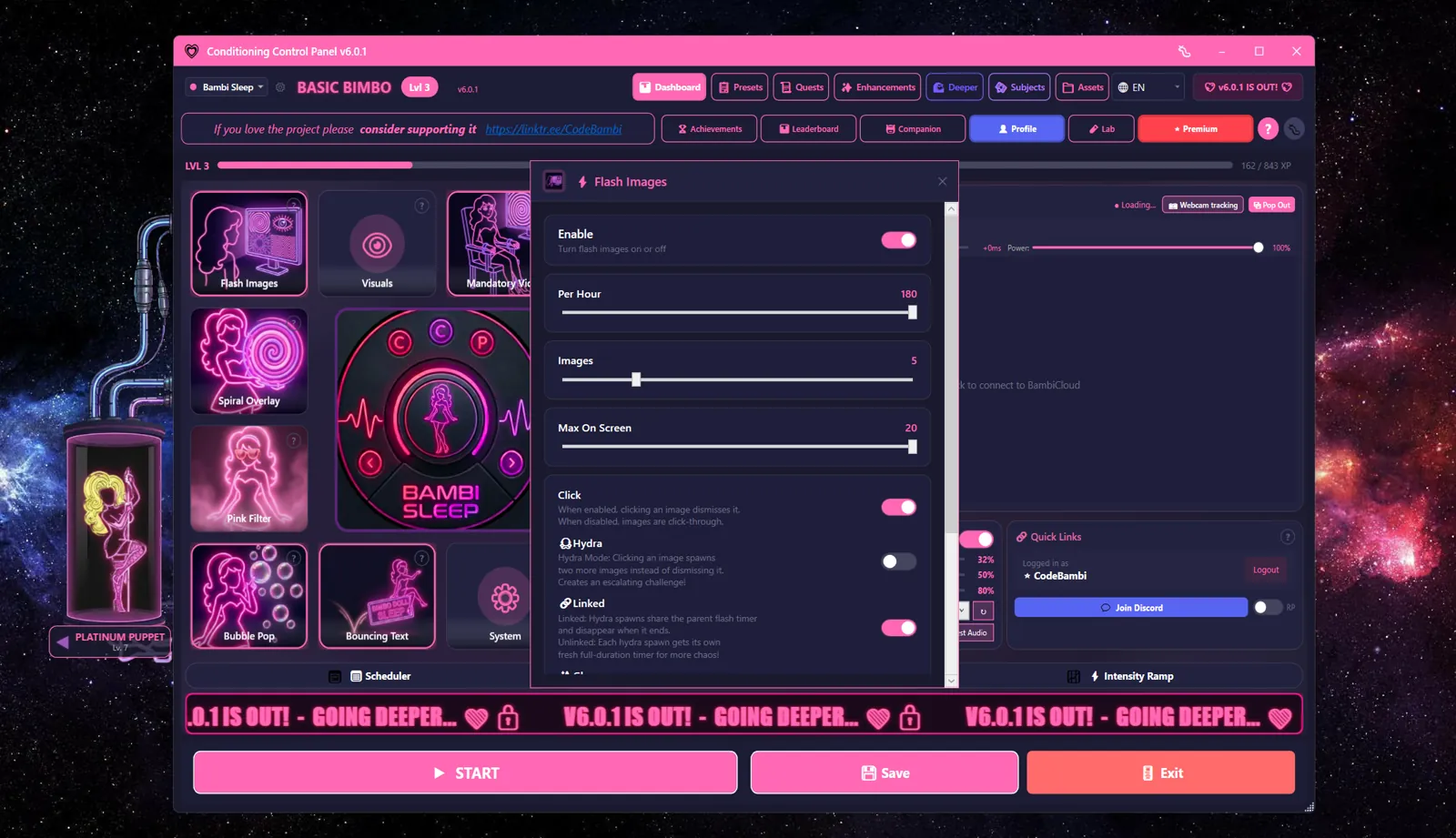
| Setting | Range | Default | What it does |
|---|---|---|---|
| Enable | On/Off | On | Turns flash images on or off |
| Per Hour | 1-180 | 10 | Roughly how many flash events happen in an hour |
| Images | 1-20 | 5 | How many images each event puts on screen |
| Max On Screen | 2-20 | 20 | Ceiling on how many can be visible at once |
| Click | On/Off | On | Clicking dismisses an image. Off makes them click-through |
| Hydra | On/Off | Off | Clicking spawns two more instead of just clearing one |
| Linked | On/Off | On | Hydra spawns share the parent's timer. Off gives each a fresh full timer |
| Glow | On/Off | On | Neon edge glow around each image |
| Avoid Screen Center | 5-60% | Off (25%) | Keeps a clear zone in the middle of the screen so you can still work |
Max On Screen has a hidden ceiling
The renderer caps itself at 10 images at once in the default mode, no matter what the slider says. Turn on Solid mode (game friendly) and the cap goes up to 30 - but solid mode also makes flashes click-through, so no clicking and no Hydra. Solid mode is there for when flashes refuse to show up over a fullscreen game.
Gaze interaction
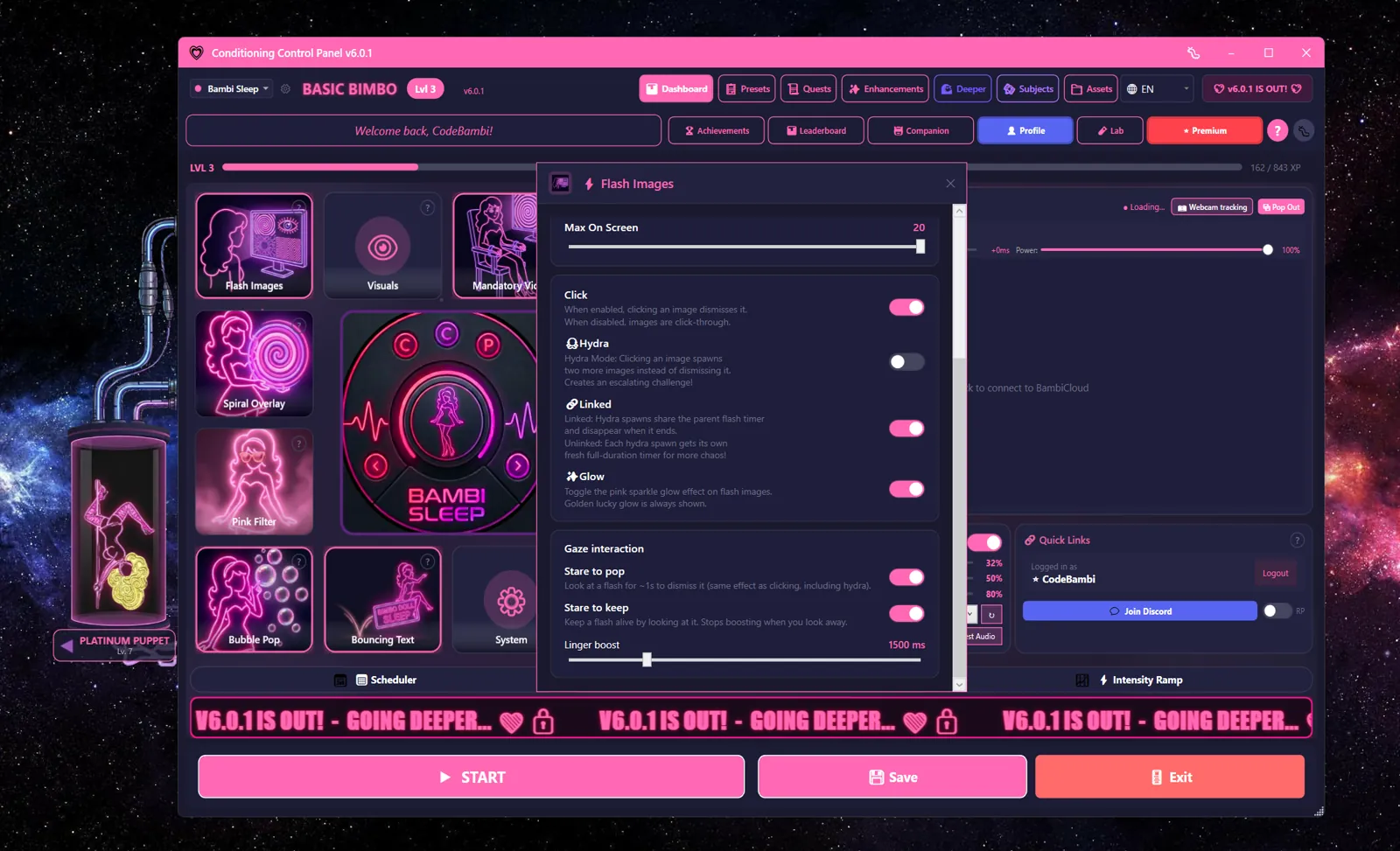
These only do anything once you've given camera consent and saved a calibration. Both are on by default, so they switch themselves on the moment gaze tracking starts working.
| Setting | Range | Default | What it does |
|---|---|---|---|
| Stare to pop | On/Off | On | Look at an image for about a second to dismiss it. Counts as a click, Hydra included |
| Stare to keep | On/Off | On | Looking at an image keeps it alive. It starts fading again when you look away |
| Linger boost | 500-5000 ms | 1500 ms | How much extra life each glance buys |
How It Works
- The timer fires. The gap between events is
3600 / Per Hourseconds, shuffled by up to 30% either way, and never shorter than 3 seconds. At the default of 10 that's an event roughly every 4 to 8 minutes - Images are picked. Your Images count is drawn at random from the
images/subfolder of your assets folder (%LOCALAPPDATA%\ConditioningControlPanel\assets\by default, or wherever you point Pick Folder in the System card on the Dashboard). Subfolders are included. Any installed content packs get mixed into the same pool, and anything you disabled in the asset manager is left out - They're placed at random. Random position, random monitor, sized relative to that monitor
- They fade out after the Duration you set, plus about a second
- Or you deal with them. With Click on, clicking closes an image. With Hydra on, it closes and two more appear
- The cap holds.
Max On Screenand the renderer's own limit keep the pile from growing forever
Supported files
Anything in this list is fair game: .png, .jpg, .jpeg, .jpe, .jfif, .gif, .webp, .bmp, .tif, .tiff, .heic, .avif, .ico. Animated GIF and animated WebP both play their animation.
XP tip
XP is awarded per image shown, not per click. That's 4 XP an image, or 8 XP if audio played with the flash. Hydra children on unlinked timing are worth less the deeper the chain goes. Clicking earns nothing on its own, so there's no farming here - just leave it running.
Hydra Mode
Hydra (labelled Hydra in the app, sometimes called corruption mode) inverts what clicking does. Normally clicking clears an image. With Hydra on, the image you clicked closes and two more take its place. Clear those and you get four. It's off by default.
It escalates on purpose
Hydra is designed to punish tidying up. Your screen fills faster than you can clear it, which is the point. Max On Screen and the renderer's cap stop it from covering everything, and spawns are only allowed while there's actually room under the cap - but it can still get loud.
How to manage it
- Stop clicking. Left alone, images fade out on their own timer and the pile shrinks
- Lower Max On Screen if the ceiling is too high for comfort. The app itself warns you when Hydra is on with a limit above 15
- Leave Linked on. Linked spawns die with their parent. Unlinked spawns each get a fresh full timer, which is a lot more chaotic
- Panic key. Escape by default. It clears everything on screen and stops the scheduler, from any window
If you have gaze tracking on, staring an image away also counts as a click and can trigger Hydra, but only from an original flash - gaze pops on a Hydra child won't spawn more. That guard exists so a stare doesn't start a chain that feeds itself.
Visual Settings
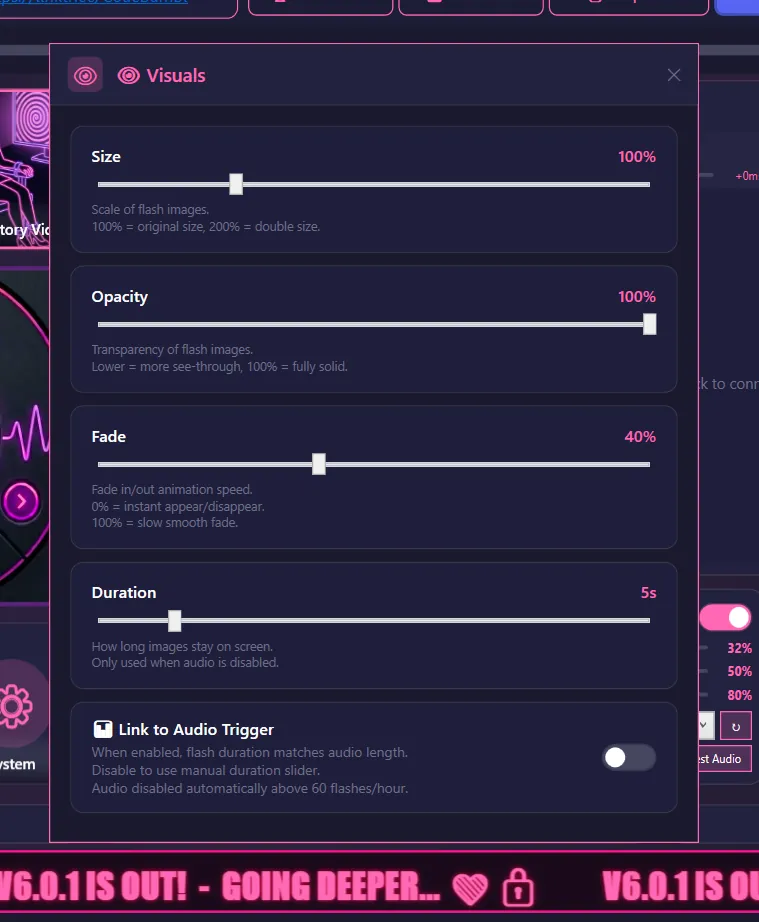
Visuals is a separate card from Flash Images. It controls how the images look and how long they stay.
| Setting | Range | Default | What it does |
|---|---|---|---|
| Size | 50-250% | 100% | Scale. 100% is about 40% of your monitor's width |
| Opacity | 10-100% | 100% | How solid the image looks |
| Fade | 0-100 | 40 | How long the fade in and out takes. 0 is an instant cut |
| Duration | 1-30 sec | 5 sec | How long an image stays before it fades |
| Link to Audio Trigger | On/Off | On | Match the image's time on screen to the length of the audio playing with it |
Images actually stay for Duration plus about one second, and Link to Audio Trigger overrides Duration whenever a clip plays with the flash. Turn the link off if you want the slider to be the only thing that decides.
Setups worth trying
Ambient
Opacity 30-50%, Size 100%, Fade 70, Per Hour 6-10. Something in the corner of your eye while you work on something else.
Impossible to ignore
Opacity 100%, Size 150-200%, Fade 20, Per Hour 30+. Big, hard, and often.
Slow and soft
Opacity 80%, Size 120%, Fade 80, Duration 10+. Long, gentle fades instead of hard cuts.
Multi-Monitor Support
Multi Mon in System settings decides whether flashes can use your other screens. It's on by default. Each flash picks a monitor at random.
Multi-monitor notes
• Every connected display is in the running, not just two
• Max On Screen counts across all monitors together, not per screen
• Hydra spawns stay on the same monitor as the image you clicked
• If you calibrated gaze tracking, flashes can be pinned to the calibrated screen only. That's the Restrict gaze content to calibrated screen option, on by default
• Turn Multi Mon off to keep everything on your primary display