 Conditioning Control Panel
Overview
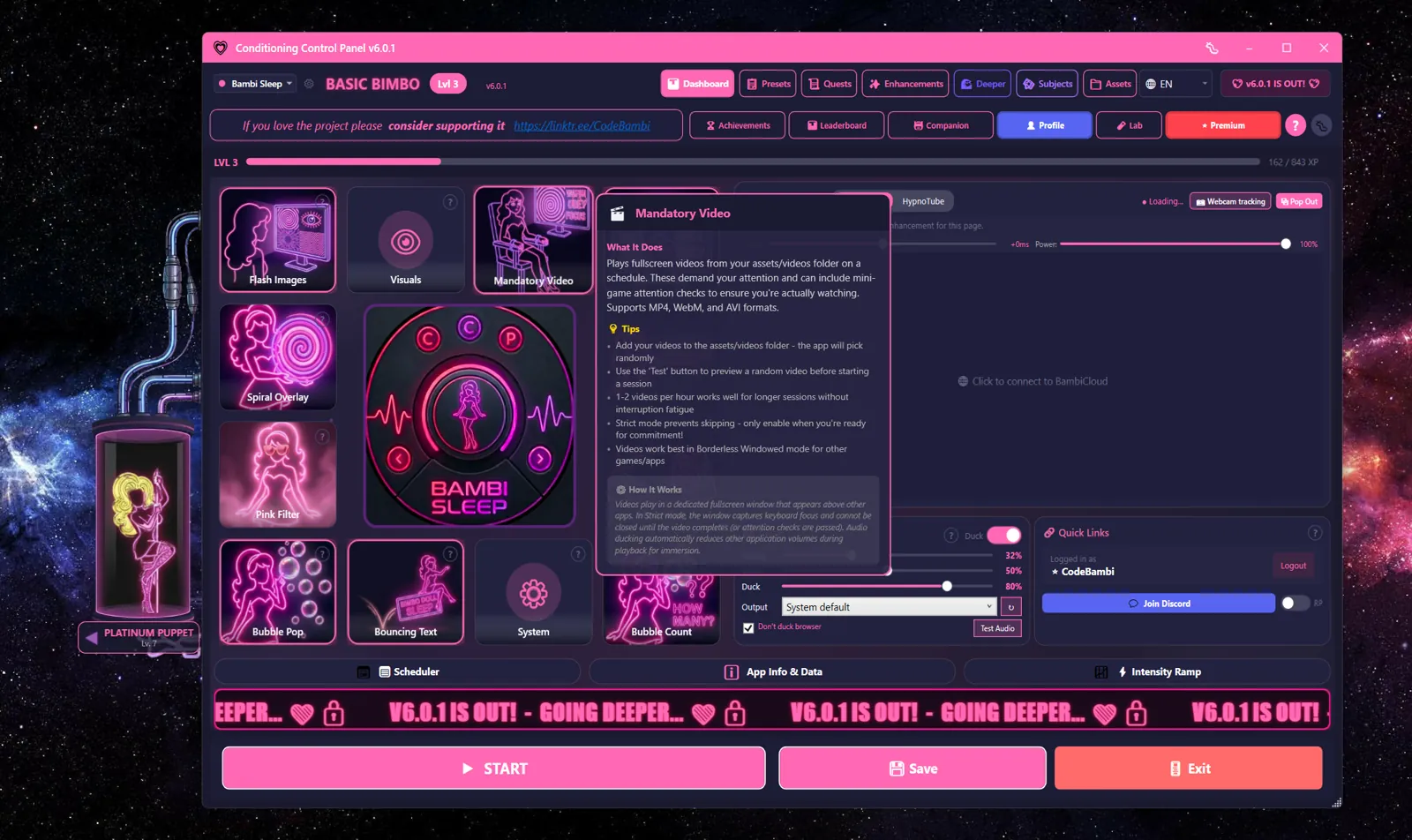
You drop video files into a folder. The app picks one at random and plays it fullscreen, on top of whatever you were doing, a few times an hour. Nothing is downloaded for you and nothing is bundled - it only ever plays files you put there yourself.
By default you can still close a video with the panic key. If you want that taken away, that is what Strict Lock is for. Start with it off.
Fullscreen
Takes over the screen, on top of everything
Strict Lock
Optional. No skipping, no closing
Attention Checks
Click the targets to prove you're watching
Haptic Sync
Hitting a target can buzz a connected toy
Video Settings
| Setting | Range | Default | What it does |
|---|---|---|---|
| Enable | On/Off | On | Turns mandatory videos on or off |
| Per Hour | 1-20 | 2 | How many videos play in an hour |
| Strict | On/Off | Off | Videos can't be skipped or closed. See below |
| Min length | 0-600 sec | 0 (off) | Skip anything shorter than this |
| Max length | 0-1800 sec | 0 (off) | Skip anything longer than this |
The two length sliders are the Duration filter. Both default to 0, which means no limit. Use them when your folder is a mix of ten-second clips and half-hour files and you only want one kind right now.
What actually happens
- Videos come from the
videos/subfolder of your assets folder (%LOCALAPPDATA%\ConditioningControlPanel\assets\by default, or wherever you point Pick Folder in the System card on the Dashboard) - Recognised file types:
.mp4,.mov,.avi,.wmv,.mkv,.webm - Playback is fullscreen and always-on-top, with no title bar. You can't move it, resize it, or minimise it
- It plays on your primary monitor. Turn on Multi Mon in the System card and it fills every screen instead - on three or more monitors you also need Fill all monitors with video, which is off by default to keep the decoders from stacking up
- Audio from your other apps is ducked while it plays
- Press the panic key (default: Escape) to stop it, unless Strict Lock is on
- Watch time counts toward achievements and daily quests. XP for videos comes from the attention check mini-game, not from playback itself
Strict Lock Mode
Strict Lock removes your exit. With it on, a video plays to the end whether you want it to or not.
Read this before you turn it on
You cannot close, minimise, or skip the video. The only way out is the panic key, and only if the panic key is still enabled. Do not switch this on for the first time with a two-hour file in your folder. Use the Max length filter so you know the longest window you could be committing to.
Turning it on
The app makes you confirm twice on purpose:
- A dialog lists what you're agreeing to: no skipping, no closing, panic key only, "this can be very intense and restrictive"
- Tick I understand enabling Strict Lock is dangerous. The confirm button stays greyed out until you do
- Click Enable Anyway
Getting out
| Setup | Way out |
|---|---|
| Strict on, No Panic off | Press the panic key (default: Escape) |
| Strict on, No Panic on | Nothing in the app. Wait for the video to end, or kill the process from Task Manager |
No Panic is a separate switch in System settings that disables the panic key everywhere, not just for videos. Stacking it with Strict Lock means the app has no stop button at all. Task Manager (Ctrl+Shift+Esc) always works, and there is no penalty for using it.
Attention Checks (Mini-Game)
Also called Mini-Game in the app. While a video plays, buttons pop up at random spots on screen. Click them before they vanish. It's a proof-of-presence check: it stops the video from becoming background noise you scroll past.
| Setting | Range | Default | What it does |
|---|---|---|---|
| Mini-Game | On/Off | Off | Turns attention checks on or off |
| Targets | 1-10 | 3 | How many targets appear per video |
| Duration | 1-15 sec | 5 | How long each target waits for you |
| Size | 30-150 px | 70 | How big the target button is |
The dice icon next to Targets randomises the count instead, picking anywhere from 1 up to your slider value each time.
How a round plays out
- A button appears somewhere on screen with a phrase on it, like "GOOD GIRL" or "OBEY"
- Click it before the timer runs out. That's a hit, worth +15 XP, and it can fire a haptic pulse if you have a device paired
- On multi-monitor setups the same target spawns on every screen. Catching any one of them clears the whole batch
- Catch every target and you get a completion bonus on top: 200 XP plus 50 more for each replay you had to sit through
- Miss even one and the video starts over. That's the consequence
Replays stack
Every failed round replays the video, so a long file plus a hard target setting can turn into a much longer sitting than you planned. If Mercy is enabled in System settings, the app lets you off after the third failure instead of looping again. Leave Mercy on until you know how the timing feels.
Editing the phrases
The Phrases button opens the target word list. It ships with a dozen defaults (CLICK ME, GOOD GIRL, DROP, OBEY, ACCEPT, SUBMIT and others) and you can add, remove, or switch off any of them. The Style button next to it changes how the target looks - colours, border, font.
Stare to click
If you've set up Webcam Tracking, the Stare to click toggle lets you hit a target by looking at it for about a second instead of clicking it. Same hit, same reward.
Achievement tip
Failing the attention check three times unlocks Mercy Beggar.
Audio Ducking
Ducking turns down everything else on your PC while a video plays, so the video is what you hear. It lives on the Audio card on the Dashboard, behind the advanced toggle, not in the video panel.
| Setting | Range | Default | What it does |
|---|---|---|---|
| Duck (toggle) | On/Off | On | Reduce other apps' volume during playback |
| Duck (slider) | 0-100% | 80% | How much to reduce them. 80% means they drop to 20% of their volume |
| Don't duck browser | On/Off | On | Leaves the built-in BambiCloud browser at full volume |
How it works
- A video starts. The app turns down each other app's volume individually, using Windows' per-app mixer. Your system volume is not touched
- The video plays at whatever you set under Video volume
- Apps that start mid-video get turned down too - the app rescans while ducking is active
- When the video ends, every app is put back where it was. If the app crashes mid-duck, it writes down the old levels first and restores them on next launch, so nothing stays stuck quiet
Tips & Troubleshooting
Which file formats to use
Playback runs on LibVLC, so most things work. If you're converting anyway:
- MP4 (H.264) - the safe default
- WebM - fine alternative
- MKV, MOV, AVI, WMV - all recognised, just bigger or fussier
Common issues
Nothing plays
Check the file is in the videos/ subfolder of your assets folder, and that its length isn't being excluded by the Min or Max length filter. The Test button on the video card plays one straight away.
Black screen, no picture
Usually a codec the decoder can't handle. Re-encode to MP4 (H.264) with a tool like HandBrake.
Audio out of sync
Re-encode the file. Sync problems are almost always baked into the source.
Can't exit a video
Press the panic key. If Strict Lock and No Panic are both on, use Ctrl+Shift+Esc and end the process from Task Manager.
Other apps stayed quiet
Ducking restores levels on the next launch after a crash. If something is still low, check the Windows volume mixer.