 Conditioning Control Panel
Overview
CCP can drive your toys from what's happening on screen. Pop a bubble, it taps. Start a mandatory video, a low vibration sits underneath it. Hit a level-up, you get the celebration pattern. You decide which of those are on and how strong each one is.
Haptics has its own Haptics tab. There's a setup wizard on it that walks you through connecting, and it lets you skip hardware entirely while you're deciding whether any of this is for you.
Everything, Routed
Sixteen separate triggers, each with its own strength
Audio Sync
Follows a video's soundtrack in real time
Multi-Toy
Several toys at once, each with its own job
Panic Stop
One button. Everything off. Always available.
Try it before you connect anything
Pick Mock toys in the wizard and the app gives you three virtual toys - a single-motor one, a two-motor one and a thruster - and shows on screen what they'd be doing. Every feature works with them. No hardware, no Bluetooth, no pairing.
Patreon feature
Haptics needs a paid tier. Any tier - it's not the top one. Patreon or SubscribeStar.
Requirements
- A paid tier. Any of them.
- A toy, unless you're using Mock. Anything Intiface supports, or any Lovense toy.
- Go-between software. Intiface Central on this PC, or the Lovense Remote app on your phone. CCP doesn't talk Bluetooth itself.
- Bluetooth for the Intiface route - it's Intiface that does the pairing, on this machine.
- The same Wi-Fi for the Lovense route - your phone and this PC have to be on one network.
Choosing How to Connect
There are three ways in, and you don't have to pick just one - you can enable as many as you like and they all connect at the same time. A Lovense toy over Wi-Fi and a non-Lovense toy over Intiface will happily run together, and the app merges them into one list.
| Intiface (buttplug.io) | Lovense (Wi-Fi) | Mock | |
|---|---|---|---|
| Works with | Hundreds of toys | Lovense only | Nothing real |
| You need | Intiface Central on this PC | Lovense Remote on your phone | Nothing |
| Connects over | Bluetooth, via Intiface | Your local Wi-Fi | N/A |
| Internet needed | No | No, but same network | No |
| Feature coverage | Vibrate, rotate, position, oscillate, constrict | Fullest - thrust, suction, depth, native patterns | All of it, pretend |
| Best for | Non-Lovense toys, or several at once | Lovense owners | Trying it out |
Short version
Lovense toy? Use the Lovense route. It reaches features Buttplug can't - thrusting, suction, depth, and Lovense's own patterns.
Anything else? Intiface. It covers far more hardware.
Not sure yet? Mock. Everything works, nothing vibrates.
Intiface (Buttplug.io) Setup
Intiface Central is the free app that does the actual Bluetooth talking. CCP connects to it, it connects to your toy.
1 Install Intiface Central
Download Intiface CentralInstall it and open it. This is the main screen:
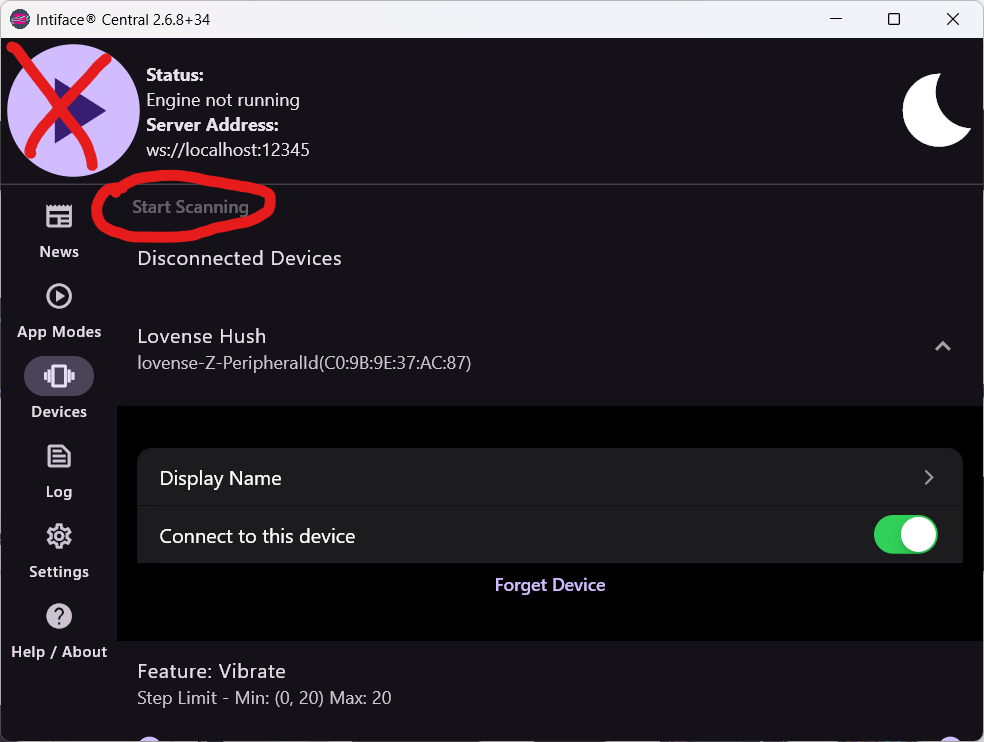
2 Start the server and pair your toy
- Click Start Server.
- Turn your toy on and put it in pairing mode.
- Click Start Scanning.
- Wait for it to appear in the list as connected.
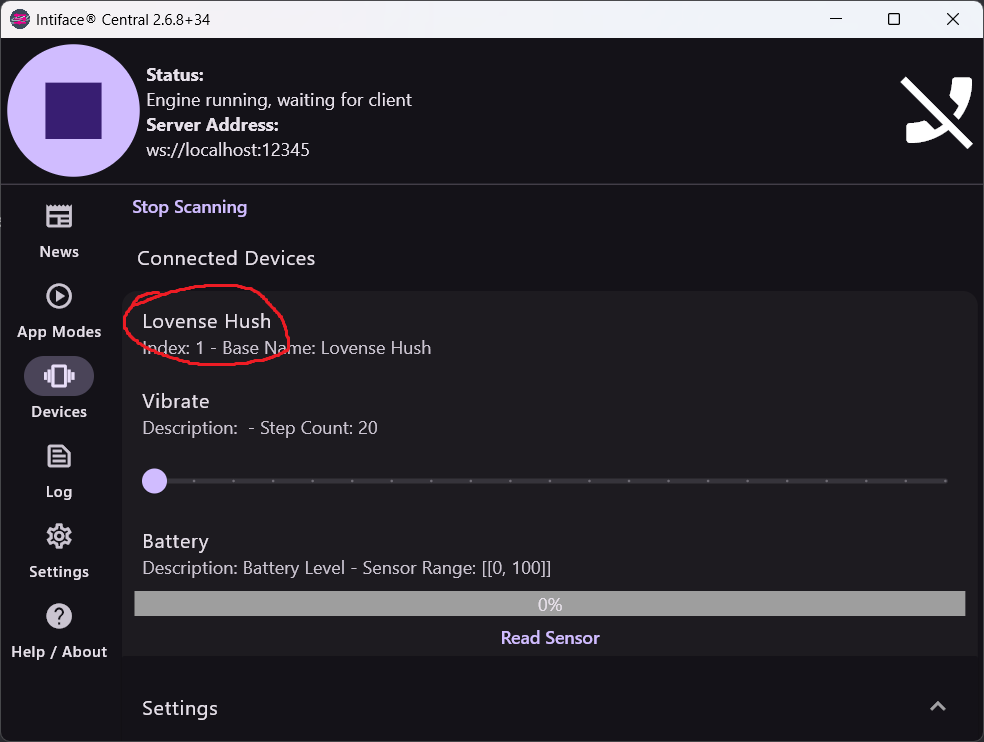
No address to type
CCP uses Intiface's default server address, ws://localhost:12345, automatically. You only need to change it if you deliberately run the server on another machine or port. Leave Intiface running while you use CCP.
3 Connect from CCP
Open the Haptics tab in CCP, tick Intiface in the providers list, and press Connect. Or just run the setup wizard and let it do all three steps for you.
Lovense Setup
The Lovense route goes through Lovense Remote on your phone, not through a PC app. Your phone holds the Bluetooth connection to the toy and opens a small local server; CCP talks to that server over your Wi-Fi.
1 Turn on Game Mode
- Open Lovense Remote on your phone and pair your toy as usual.
- Tap Discover, then Game Mode.
- Turn Enable LAN on, and leave Game Mode switched on.
- Note the IP address it shows you.
Same Wi-Fi, both devices
Your phone and this PC have to be on the same network. Guest networks, phone hotspots and client isolation all break it.
2 Give CCP the IP
- Open the Haptics tab and tick Lovense in the providers list.
- Type in the IP from Lovense Remote. Just the IP is enough - the app finds the right port itself. A full address like
http://192.168.1.104:30010also works. - Press Connect. Your toy should appear in the toy list.
Worth it if you have a Lovense toy
This route reaches things Intiface cannot: thrusting, fingering, suction, pump and depth as distinct motions, Lovense's own pattern messages, and two-way input from the toy's buttons.
Setting It Up in CCP
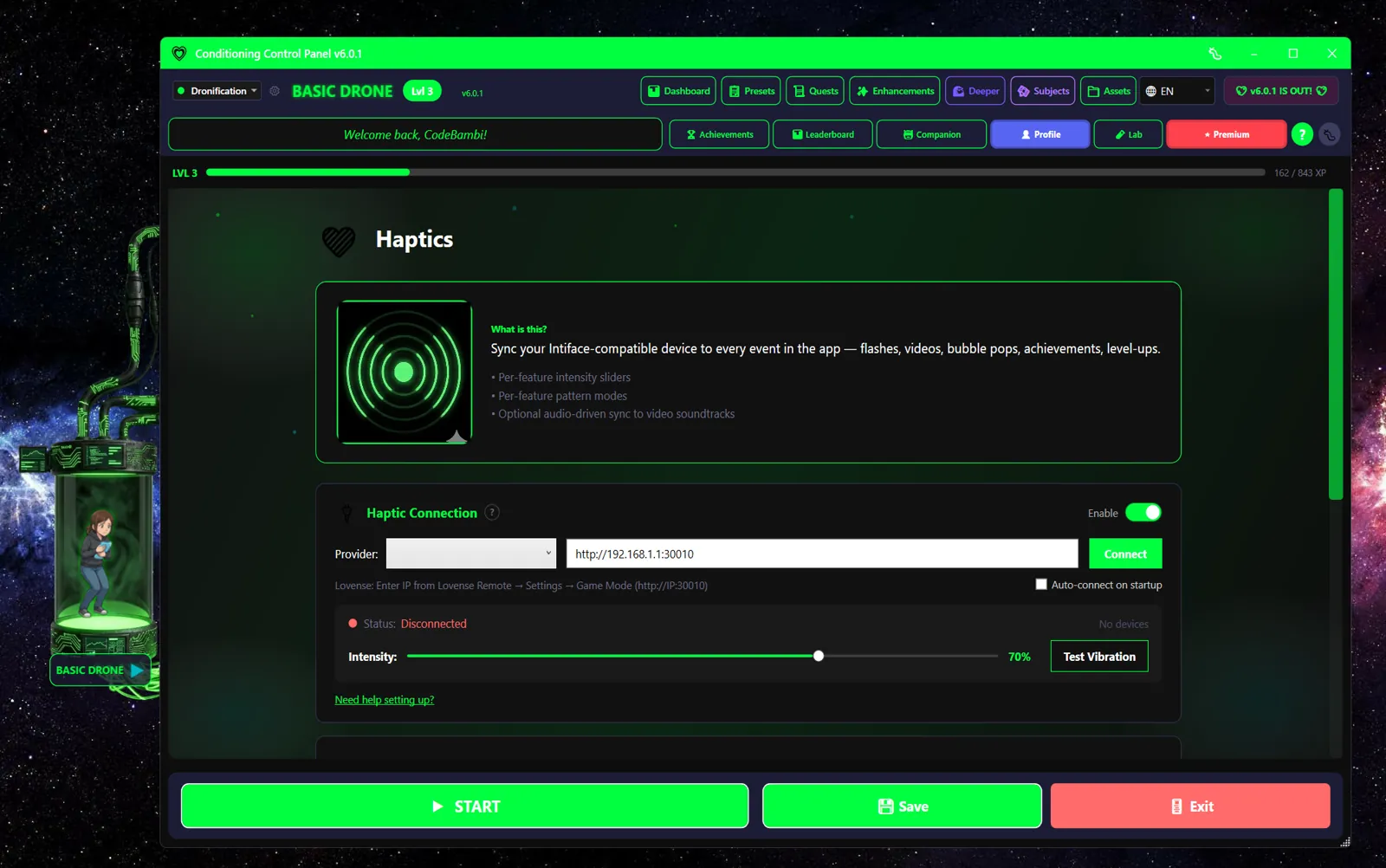
The tab is split into sections, and you can safely ignore most of them. The two that matter on day one are the connection and the intensity dial.
1 Run the setup wizard
There's a wizard on the Haptics tab that does the whole connection for you: pick Lovense, Intiface or Mock, follow three short steps, press Connect, and it either shows your toys or tells you exactly what went wrong. Use it. Everything below is the manual version.
2 Pick your providers
Under Set up connection, tick whichever you want: Lovense, Intiface, Mock, or any combination. They connect together and share one toy list. If nothing is ticked, the Connect button has nothing to do.
Auto-connect on startup is available and off by default.
3 Connect and test
- Make sure Intiface Central is running, or Game Mode is on in Lovense Remote.
- Press Connect.
- Your toys appear under Your toys with a count.
- Hit Test this toy on any of them. It should buzz.
4 Set how it feels
Two controls do most of the work:
- Intensity - the master dial. Multiplies everything the app produces.
- Temperament - a row of chips for how it behaves rather than how strong it is. Five options: Gentle (soft, slow swells, fewer things at once), Balanced (the default, nothing exaggerated), Tease (slow to arrive, slow to let go), Intense (stronger and quicker off the mark), and Cruel (instant, sharp, hits pile on top of each other).
Temperament never overrides your safety ceiling. Even Cruel gets capped.
Give each toy a job
If you have more than one toy connected, you can hand each of them a different role instead of having everything fire at once:
| Role | What it hears |
|---|---|
| All | Everything. The default. |
| Reward | Only the rows you've pointed at Reward - achievements, level-ups, gaze rewards, whatever you choose. |
| Punish | Only the rows you've pointed at Punish. |
| Ambient | Only the background layers, like the low hum under a video. |
Each toy also gets a nickname, a trim slider (a per-toy power multiplier, so a weak toy and a strong toy can be balanced against each other), and a mute that silences it without disconnecting it. All of it is remembered per toy.
Choosing what triggers what
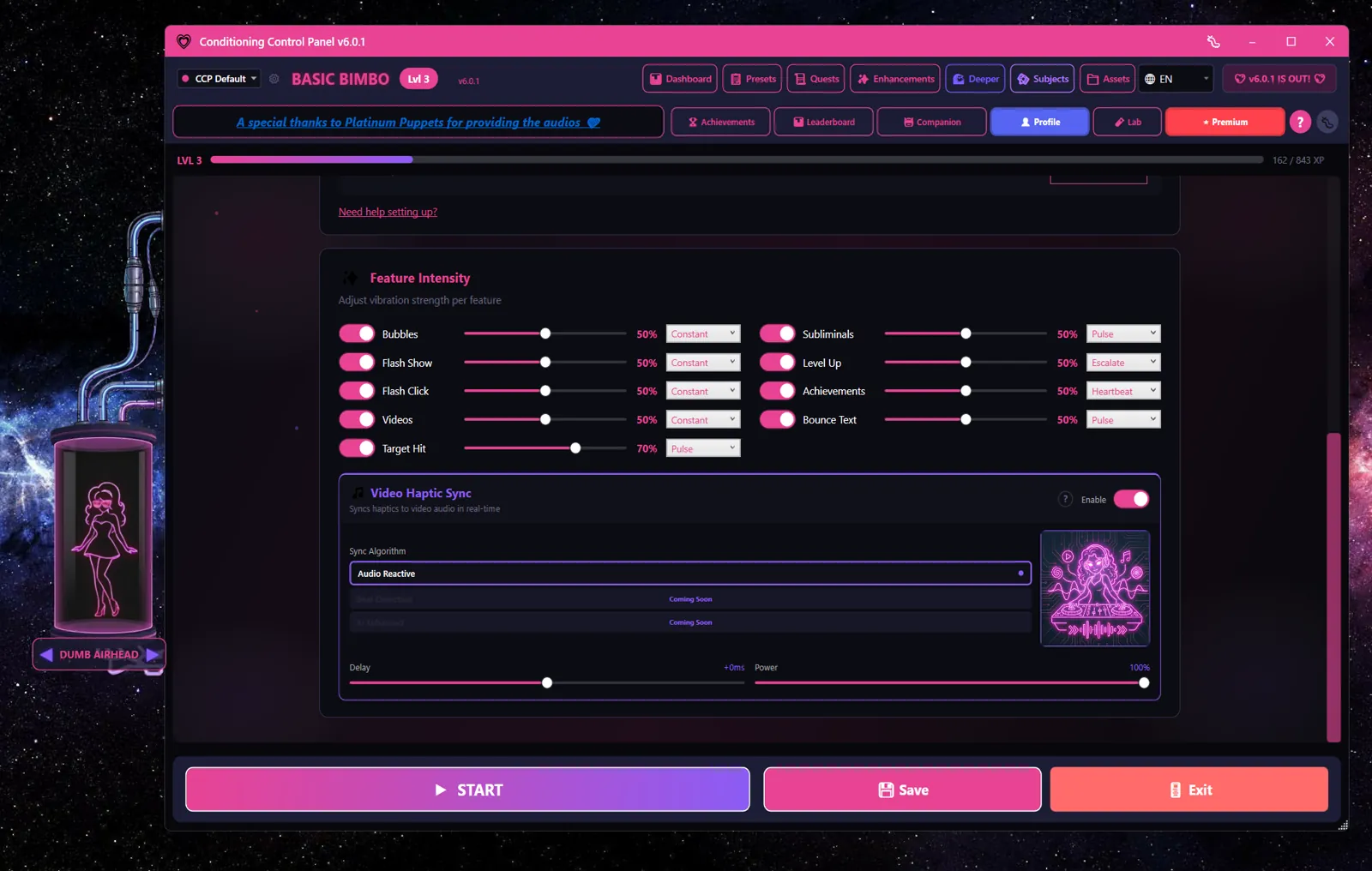
The What triggers what list is the heart of it. Every row is one event, and each row has its own on/off, strength, pattern and target role. Tap a row to open it. The rows are grouped:
- Core - flash click, flash appearing, subliminals, Awareness keyword hits, Blink Trainer blinks
- Rewards - achievements, quest completions, level-ups, gaze rewards
- Media - the constant low vibration under mandatory videos, attention-target hits, audio sync, bouncing text hitting the edge
- Games - bubble pops, Down the Rabbit Hole accents, Deeper patterns
Six stock patterns are available on each row: Constant, Pulse, Wave, Heartbeat, Escalate and Earthquake. There's a pattern lab that plays each one on a chosen toy so you can hear it before assigning it.
Safety ceiling
Max power is capped at 70% out of the box
Nothing can exceed the Max power ceiling, whatever any other slider says. It ships at 70% on purpose - full power is something you opt into, not something you discover mid-session. Raise it above 70% and the app warns you. Only do it once you know how your toy feels at the top of its range.
There's also a soft ramp: the background vibration climbs to its target over about a second rather than snapping on. That's a safety measure, not a stylistic one.
Panic stop
The Haptics tab has a PANIC STOP button. It stops every toy immediately, clears everything that was queued, and bypasses every throttle in the pipeline. It's always available, even mid-pattern, and it retries the stop several times so an in-flight command can't sneak through and re-arm a toy behind it. Turning the master haptics switch off does the same thing.
Know where that button is before your first real session. The global panic key is a separate thing that stops the app's visual and audio effects - use the tab's own stop for toys.
Optional extras
All off or unobtrusive by default. None of them are needed:
- Audio sync - drives the toys from a video's own soundtrack in real time. Tunable: sensitivity, smoothing, and how much bass, overall volume and beats each contribute. On toys with two or more motors, bass and treble can drive separate motors.
- Flash brightness sync - brighter flash images buzz harder than dark ones.
- Video sync scripts - if a
.funscriptfile sits next to a video, the toy follows it. Nothing to configure; no script, nothing happens. Stroke scripts can be converted to vibration for toys that can't stroke. - Toy buttons and dials - two-way input. Some toys (Lovense over Game Mode, some Intiface devices) report their own buttons. Turn it on and squeezing your toy can pass a video attention check instead of clicking. The mouse still works; this never replaces it.
- Stand aside - when you change the strength on the toy itself, the app backs off its own background levels for a set time and shows a "backing off" badge. Rewards and hits still land.
- AI haptics - lets the companion request a buzz. Off by default, and separately capped well below full power even when you switch it on.
Troubleshooting
Using a VPN? That's almost certainly it
The Lovense route needs a direct connection between this PC and your phone on the local network. A VPN routes around that and the connection silently fails. Turn the VPN off, then reconnect. The app shows this hint when a test fails, because it's the single most common cause.
Nothing connects
Work through these in order
- Have you ticked a provider? Nothing happens until at least one of Lovense, Intiface or Mock is enabled.
- Is Intiface Central running, or Game Mode still on in Lovense Remote? Start those before pressing Connect.
- Is your toy on, awake, and charged?
- Is something else holding the toy - another app, another browser tab, the Lovense app on a second device?
- Restart the go-between app and try again.
- Still nothing? Tick Mock and connect. If the mock toys work, the problem is between the app and your hardware, not inside CCP.
The app reports "connected, but no toy yet" as a separate state. That means the link is up and it's still looking - pair or wake the toy and it'll appear on its own.
Intiface specifically
- Server won't start: another instance may already be running, or something else has port 12345.
- Toy not found: put it back into pairing mode and hit Start Scanning again. Pairing happens in Intiface, not in CCP.
- Connection drops: check Bluetooth range, and keep Intiface Central running.
- Custom setup: only change the server address if you genuinely moved the server. The default is
ws://localhost:12345.
Lovense specifically
- Nothing answers: Game Mode and Enable LAN both have to be on in Lovense Remote, and they turn themselves off if the app closes or the phone sleeps.
- Wrong IP: phone IPs change. If it worked yesterday and not today, re-read the IP from Lovense Remote.
- Different networks: phone on mobile data, PC on Wi-Fi, or the two on different SSIDs. They must be on one network.
- Guest Wi-Fi: many guest networks block devices talking to each other. Use the main network.
Connected, but nothing buzzes
- Check the master haptics switch is on. Turning it off is a deliberate all-stop.
- Check the toy isn't muted in the toy list, and its trim isn't at zero.
- Check the row for that event is enabled in What triggers what, and that its target role matches the toy's role. A toy set to Reward will ignore a row aimed at Punish.
- Check Max power hasn't been dragged near the floor.
Still stuck?
Ask on Discord, or open a GitHub issue.