 Conditioning Control Panel
Scheduler
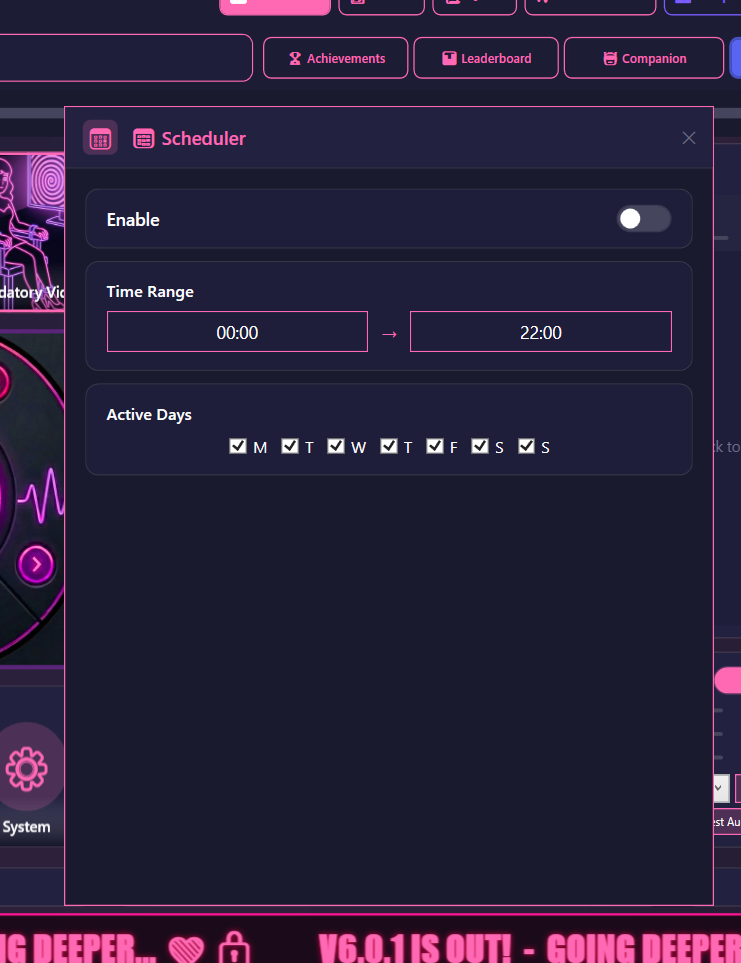
The scheduler starts and stops the engine for you, based on the time of day and the days you tick.
Both the Scheduler and the Intensity Ramp sit in the right-hand column of the Progression tab. The Settings tab also has a Scheduler + Intensity Ramp button that opens the pair in one popup, and that popup is the only place with the Ramp Curve dropdown.
| Setting | What it does |
|---|---|
| Enable | The on switch for the whole scheduler. Off by default. |
| Time Range | Start and end time, written in 24-hour format (for example 22:00). |
| Active Days | Seven checkboxes, M through S. All seven are on to begin with. |
The app has to be running
The scheduler can't launch the app for you. CCP has to be open - minimised to the system tray is fine. If the app is closed at your start time, nothing happens.
Overnight windows work
If the end time is earlier than the start time, the app treats it as crossing midnight. 22:00 to 02:00 does what you'd expect.
Scheduler Behavior
You open the app inside the window
- The window minimises to the system tray
- The engine starts straight away
- You get a tray notification
The window starts while the app is open
- The window minimises to the tray
- The engine starts
- You get a tray notification
The window ends
- The engine stops
- You get a tray notification
You stop it yourself mid-window
- The scheduler takes the hint. It will not restart the engine for the rest of that window.
- The next scheduled window starts normally.
Intensity Ramp
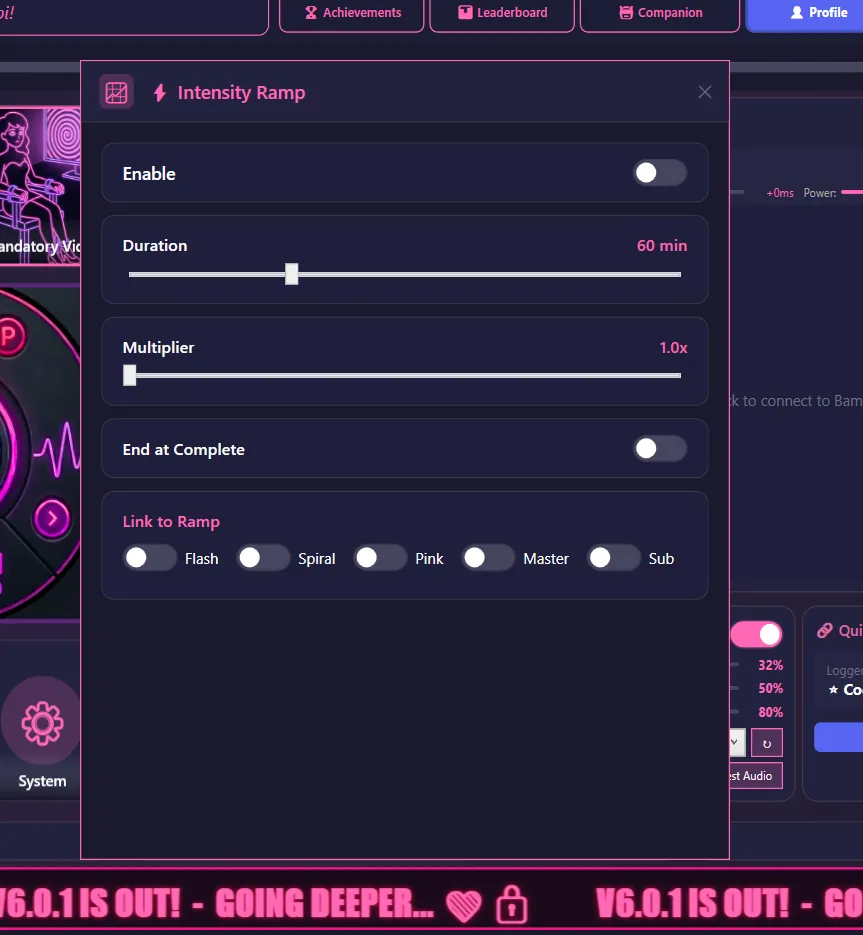
The ramp raises intensity slowly over a set stretch of time, so a session builds instead of starting at full strength.
| Setting | Range | What it does |
|---|---|---|
| Enable | On / Off | The on switch for the ramp. Off by default. |
| Duration | 10-180 min | How long it takes to reach the top. |
| Multiplier | 1.0-3.0x | How far above your normal settings the top is. |
| Ramp Curve | 5 shapes | The shape of the climb. See below. |
| End at Complete | On / Off | Stop the session the moment the ramp tops out. |
Ramp curves
The curve decides whether the build is even or lopsided. Same start, same finish, different journey. The dropdown lives in the Settings tab's Scheduler + Intensity Ramp popup; the Progression tab copy of these controls doesn't have it.
| Curve | Feels like |
|---|---|
| Linear | A steady climb. This is the default. |
| Ease In | Slow start, then it picks up. |
| Ease Out | Fast start, then it flattens off. |
| S-Curve | Gentle at both ends, quickest through the middle. |
| Exponential | Almost nothing for a long while, then a late surge. |
How the ramp runs
- The session starts and every linked setting sits at its normal value.
- Over the duration you picked, those values climb along the curve.
- At the top they reach
your value × multiplier. - The sliders move as it happens, so you can watch it.
- If End at Complete is on, the session stops there.
- When the ramp stops, everything goes back to the value you set. It doesn't leave your sliders cranked.
Example
Flash Opacity: 50%
Multiplier: 2.0x
Duration: 60 min
Curve: Linear

Result: opacity climbs from 50% to 100% over 60 minutes

Timeline:
  0 min:  50%
  15 min: 62.5%
  30 min: 75%
  45 min: 87.5%
  60 min: 100%
Preset sessions have their own ramp
When a preset session is running, this ramp steps back so the two can't fight over the same sliders. The visual links (Flash, Spiral, Pink) pause, the audio links keep working, and End at Complete will not cut a preset session short. The Ramp Curve is the exception - it still shapes the session's own built-in ramp, which is why it stays editable mid-session.
Link to Ramp
The ramp only touches what you point it at. Tick the channels you want it to raise:
| Option | What it raises | Ceiling |
|---|---|---|
| Flash | Flash image opacity | 100% |
| Spiral | Spiral overlay opacity | 50% |
| Pink | Pink filter opacity | 50% |
| Master | Master volume | 100% |
| Sub | Subliminal whisper volume | 100% |
A channel stops at its ceiling even if the multiplier would push it higher. Spiral and pink filter both top out at 50% by design.
Where to start
Subtle: link Flash only, 1.5x
Moderate: link Flash and Spiral, 2.0x
Heavy: link everything, 2.5x to 3.0x
Scheduler plus ramp
To hand the whole thing over:
- Turn on the scheduler and set your window.
- Turn on the ramp and pick a duration and multiplier.
- Turn on End at Complete so it finishes itself.
- Keep the ramp shorter than the scheduled window, or the scheduler will cut the ramp off before it reaches the top.